Front Application Overview
Overview
The Front Application is the main control interface of ITVDesk where all runtime camera behavior is configured and managed.
After a virtual ONVIF IP camera and its media source are created, all further configuration is done here.
This includes:
- Video stream parameters
- Audio routing and mixing
- Recording control
- OSD and overlay configuration
- Motion and event handling
- Preview, testing, and diagnostics
The Front Application works similarly to the configuration panel of a physical IP camera, but with significantly more flexibility.
Media Source vs Front Application
It is important to understand the separation of responsibilities in ITVDesk.
Media Source Configuration
Configured during camera creation:
- Defines where video/audio comes from
- Desktop capture, webcam, external RTSP, ONVIF camera, combined media, etc.
- Source selection only
- No stream tuning or encoding control
Media source configuration answers the question:
What is the video or audio source?
Front Application Configuration
Configured after the camera is added:
- Controls how the source is streamed, recorded, and exposed
- Video resolution, bitrate, FPS, codec
- Audio enable, mixing, and backchannel
- Recording and storage
- OSD and overlays (including POS data)
- Motion detection and events
- ONVIF and RTSP behavior
Front Application configuration answers the question:
How does the camera behave and stream?
This design allows changing stream behavior without touching the media source, ensuring stable operation.
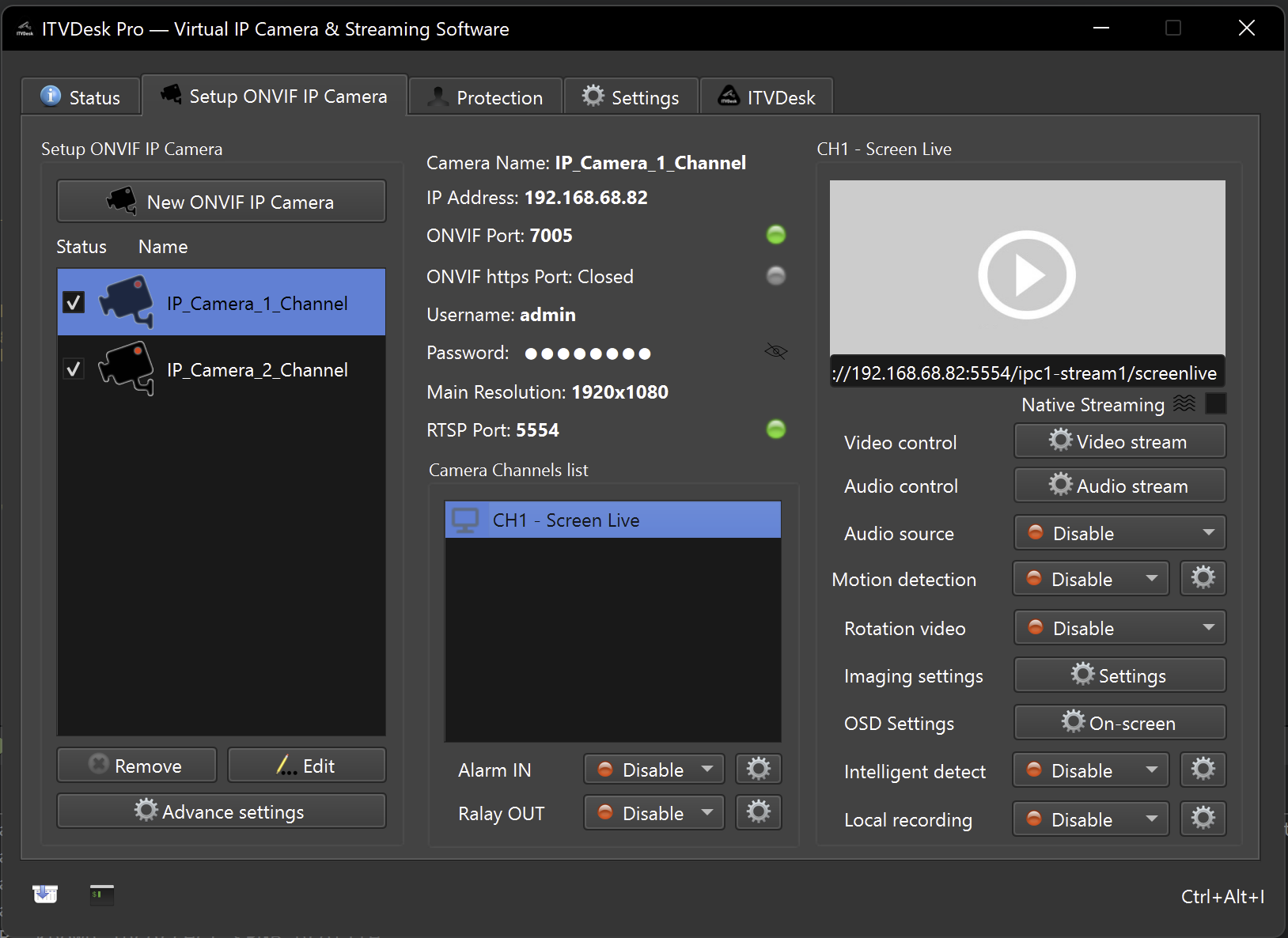
Main Front Application Layout
The Front Application is divided into three logical areas:
1. Virtual IP Camera List
Located on the left side:
- Displays all configured virtual ONVIF IP cameras
- Each entry represents one ONVIF device
- Cameras can be enabled, disabled, edited, or removed
2. Camera Channels
Located in the center:
- Lists all video channels belonging to the selected camera
- Each channel represents one video output
- Multi-channel cameras display multiple channels here
Examples:
- Desktop multi-monitor capture
- Multiple webcams under one ONVIF device
- Combined media streams
3. Camera Control Panel
Located on the right side:
- All runtime settings for the selected channel
- Video stream configuration
- Audio control
- Recording and storage
- OSD and overlays
- Motion and intelligent detection
- Preview and test tools
All changes are applied in real time, without restarting ITVDesk.
Channel-Based Configuration
ITVDesk uses a channel-oriented architecture.
- Each channel has its own:
- Video stream parameters
- Audio settings
- Recording options
- OSD configuration
- Channels can be:
- Streamed independently
- Recorded independently
- Exposed via ONVIF and RTSP
This matches how professional IP cameras and VMS systems operate.
Typical Workflow
A typical ITVDesk configuration workflow looks like this:
- Create a Virtual ONVIF IP Camera
- Select one or more media sources
- Open the Front Application
- Configure:
- Video stream settings
- Audio routing
- Recording behavior
- OSD and overlays
- Test the stream using preview or RTSP
- Run Network Camera Test for an end-to-end readiness report
- Connect the camera to a VMS, NVR, or RTSP client
Why This Design Matters
The separation between media source and front configuration provides:
- Stable and predictable operation
- Easy stream tuning without breaking sources
- Support for complex multi-channel setups
- Compatibility with professional VMS and NVR systems
- Enterprise-ready configuration workflow
This architecture allows ITVDesk to behave like a true virtual IP camera, not just a screen capture or streaming tool.
Next Steps
Continue with detailed front application sections:
👉 Camera List and Channels
👉 Video Stream Settings
👉 Audio Stream Settings
👉 Recording and Storage
👉 OSD and Overlay Configuration