Image Settings & Video Rotation
Overview
The Image Settings and Video Rotation sections allow you to control how the video image is processed, corrected, and presented before it is exposed via ONVIF and streamed to external clients.
These settings affect the final video output but do not modify the original desktop or application content at the operating-system level.
All adjustments are applied in real time.
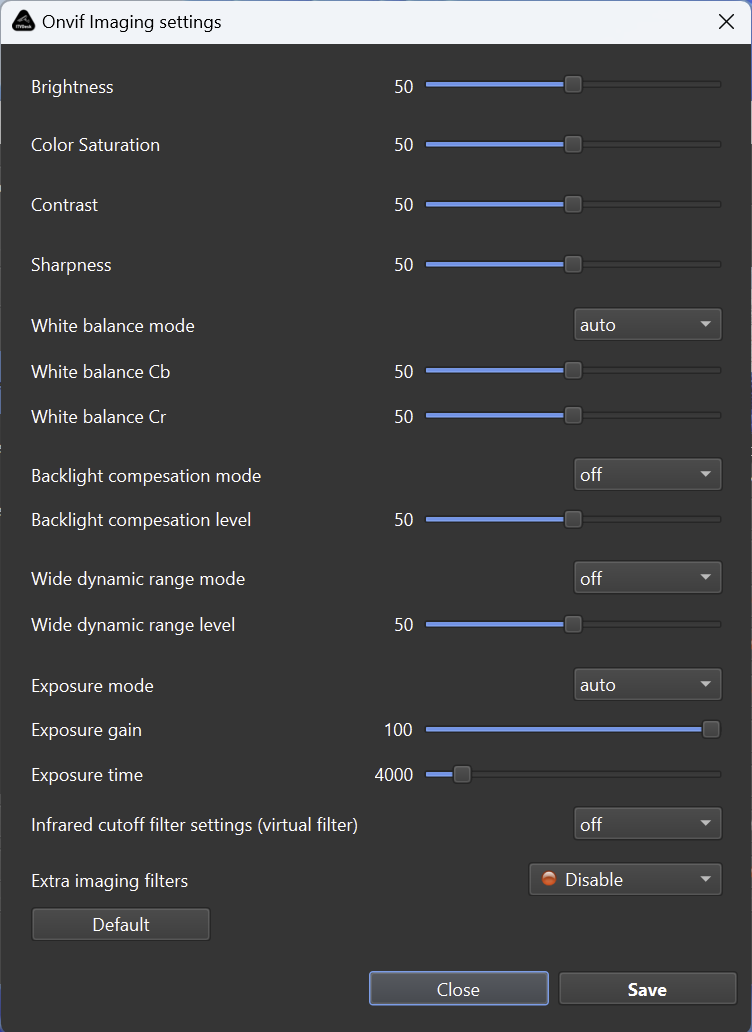
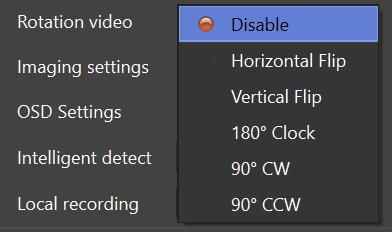
Image Settings (ONVIF Imaging)
Image Settings simulate standard ONVIF Imaging controls, commonly found on physical IP cameras.
They allow fine-tuning of image appearance to improve readability, visibility, and compatibility with external VMS/NVR systems.
Brightness
Controls the overall luminance of the image.
- Lower values: darker image
- Higher values: brighter image
Useful for adjusting visibility in dark or bright environments.
Color Saturation
Controls the intensity of colors.
- Lower values: more grayscale appearance
- Higher values: more vivid colors
Recommended to keep near default for desktop sources.
Contrast
Adjusts the difference between dark and bright areas.
- Low contrast: flat image
- High contrast: sharper separation of tones
Sharpness
Enhances edge definition.
- Low values: softer image
- High values: stronger edge emphasis
High sharpness may introduce visual artifacts on text-heavy content.
White Balance Mode
Defines how color temperature is handled.
- Auto – Automatically balances colors (recommended)
- Manual – Uses Cb / Cr values
White Balance Cb / Cr
Manual chroma adjustment values.
- Cb: blue difference
- Cr: red difference
Effective only when White Balance Mode is set to Manual.
Backlight Compensation (BLC)
Improves visibility when the image contains strong backlight.
- Mode: on / off
- Level: compensation strength
Primarily useful for camera sources, optional for desktop capture.
Wide Dynamic Range (WDR)
Balances very bright and very dark areas.
- Mode: on / off
- Level: WDR strength
Helps preserve details in high-contrast scenes.
Exposure Mode
Controls how exposure is calculated.
- Auto – System-controlled exposure (default)
- Manual – Uses Gain and Time values
Exposure Gain
Controls signal amplification.
- Higher gain increases brightness
- Excessive gain may introduce noise
Exposure Time
Controls how long each frame is exposed.
- Higher values increase brightness
- Very high values may reduce perceived motion clarity
Infrared Cutoff Filter (Virtual)
Simulates an IR-cut filter.
- On / Off
This is a virtual filter for compatibility with ONVIF clients and does not control physical IR hardware.
Extra Imaging Filters
Optional additional image filters.
- Default: Disabled
These filters may include experimental or cosmetic processing options.
Default Button
Resets all image parameters to their default values.
Save / Close
- Save – Applies and stores the current settings
- Close – Exits without saving changes
Video Rotation
The Rotation Video menu allows changing the orientation of the video stream before it is delivered to ONVIF clients.
This is useful for matching different display layouts or camera orientations.
Available Options
-
Disable
No rotation or flipping applied. -
Horizontal Flip
Mirrors the image horizontally. -
Vertical Flip
Mirrors the image vertically. -
180° Clock
Rotates the image by 180 degrees. -
90° CW
Rotates the image 90 degrees clockwise. -
90° CCW
Rotates the image 90 degrees counter-clockwise.
Rotation is applied after image processing and affects all connected clients equally.
Notes & Limitations
- Image and rotation settings affect stream output only
- No changes are made to the original desktop or application content
- All processing is performed in real time
- Settings are exposed consistently via ONVIF
Typical Use Cases
- Correcting screen orientation for rotated displays
- Improving text readability
- Matching VMS display expectations
- Simulating camera-like imaging controls for desktop streams
Summary
Image Settings and Video Rotation in ITVDesk provide:
- ONVIF-compatible imaging controls
- Real-time image correction
- Flexible stream orientation
- Compatibility with external VMS/NVR systems
They allow desktop and application streams to behave like fully configurable IP camera video sources.