ONVIF IP Camera (Client & Bridge)
Overview
ONVIF IP Camera media source allows ITVDesk to act as an ONVIF client that discovers and connects to external ONVIF-compatible IP cameras available on the local network.
Discovered cameras can be added to ITVDesk and exposed as part of:
- A virtual ONVIF IP camera
- A combined media stream
- A POS-integrated video source
- An RTSP / ONVIF bridge
This makes ITVDesk a powerful bridge and integration layer between existing IP cameras and modern VMS, NVR, and POS systems.
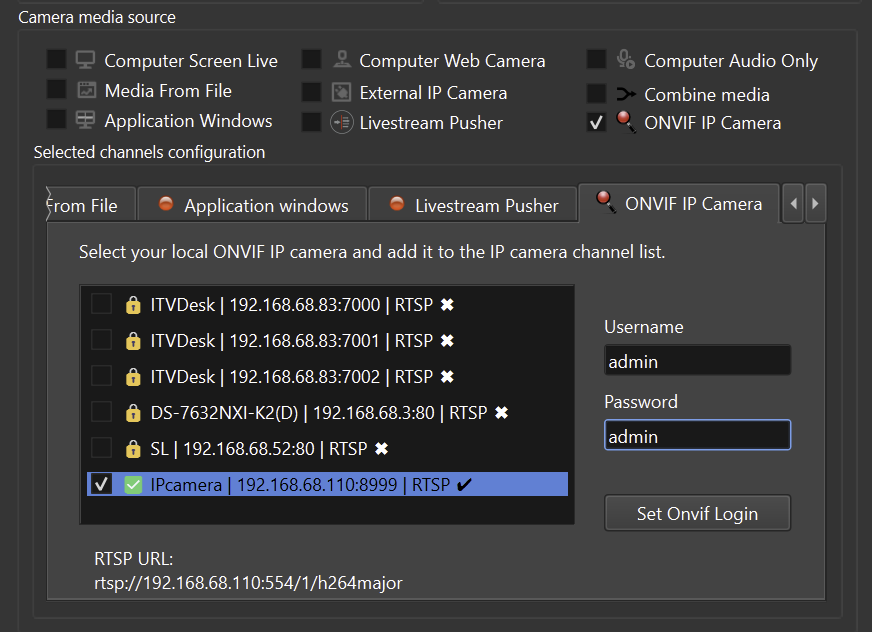
How ONVIF IP Camera Mode Works
In this mode, ITVDesk performs the following steps:
- Scans the local network using ONVIF discovery
- Detects available ONVIF-compatible cameras
- Retrieves camera information and RTSP stream URLs
- Allows the user to select and authenticate the camera
- Adds the camera as a media source inside ITVDesk
Once added, the external camera becomes part of ITVDesk’s media pipeline.
Enabling ONVIF IP Camera as Media Source
To add an external ONVIF camera:
- Create a new Virtual ONVIF IP Camera
- In Camera Media Source, enable ONVIF IP Camera
- Wait for ITVDesk to scan and list ONVIF devices
- Select the desired camera from the list
- Enter the camera’s username and password
- Click Set ONVIF Login
- Confirm the selection
The selected camera is now added to the channel list.
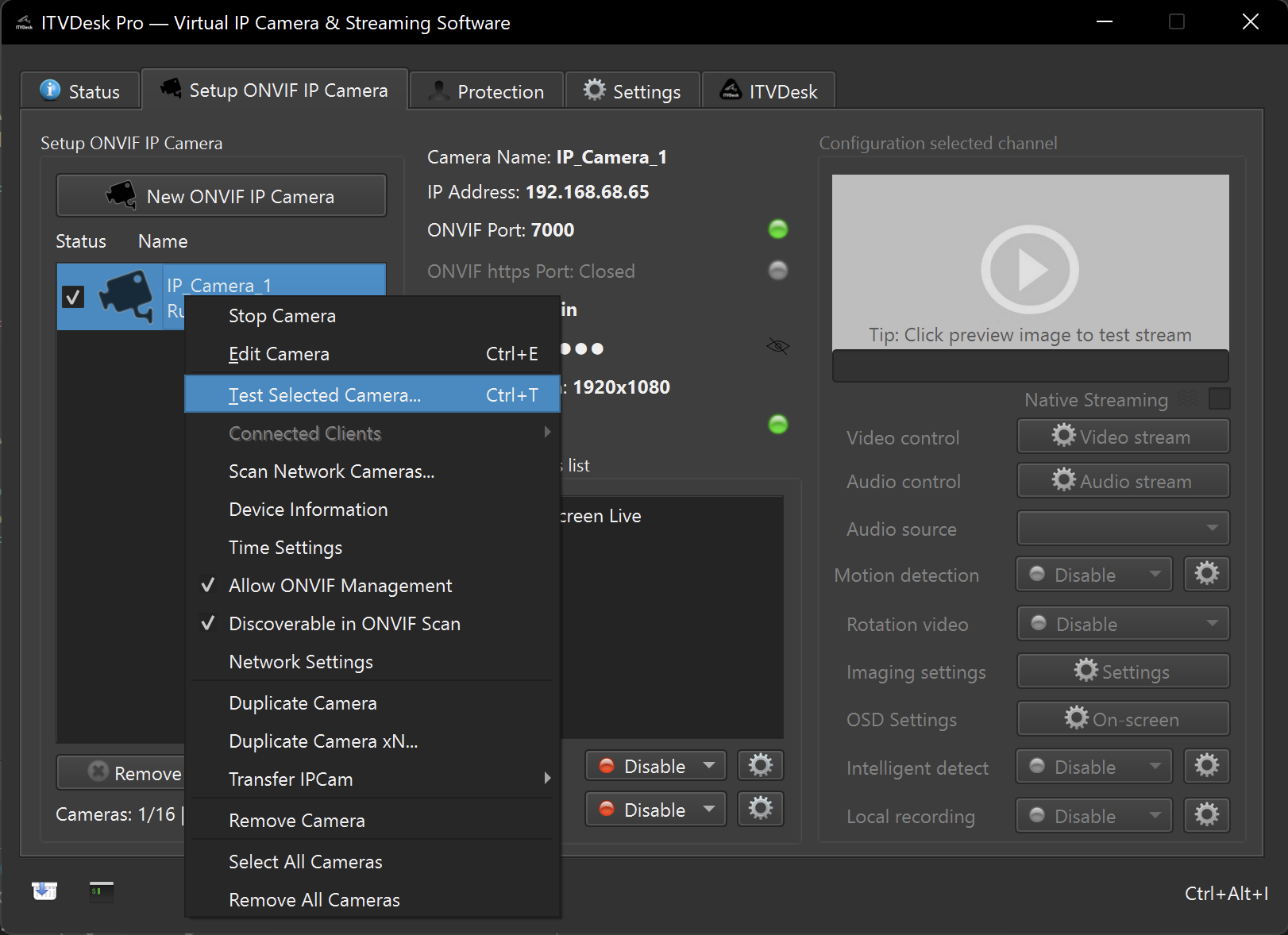
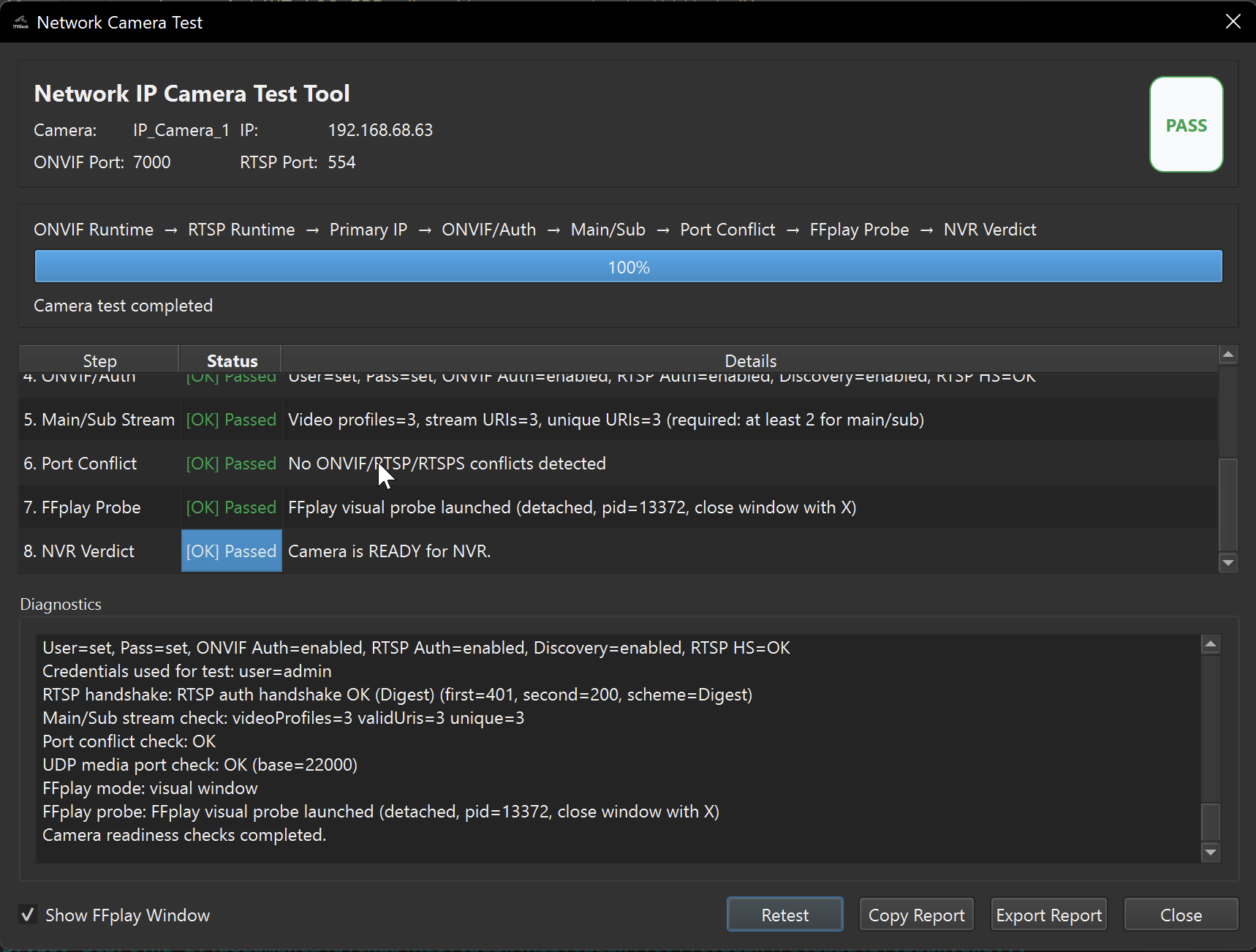
After you add the source, run Network Camera Test on your virtual camera to validate authentication and stream readiness end-to-end.
Automatic ONVIF Discovery
ITVDesk automatically discovers ONVIF devices using standard ONVIF probe mechanisms.
Discovered information includes:
- Camera IP address
- ONVIF service port
- RTSP stream availability
- Device name and model (if available)
This eliminates the need to manually search for RTSP URLs in most cases.
Authentication and Security
Most ONVIF cameras require authentication.
ITVDesk supports:
- ONVIF username and password authentication
- Secure credential handling
- Per-camera login configuration
After authentication, ITVDesk retrieves the correct RTSP stream URI automatically.
GPU-Accelerated Video Pipeline
ONVIF IP Camera mode supports hardware-accelerated decoding and encoding (GPU) when available.
This is especially useful for:
- High-resolution cameras (4K, multi-stream)
- Multiple simultaneous external cameras
- Long-running surveillance systems
Supported acceleration depends on:
- GPU hardware (NVIDIA, Intel, AMD)
- Operating system
- Installed drivers
GPU acceleration significantly reduces CPU load and improves throughput when bridging or re-streaming external cameras.
Typical Use Cases
ONVIF IP Camera integration is ideal for:
Video Bridge & Gateway
- Re-expose existing IP cameras via ITVDesk
- Unify multiple camera brands under one ONVIF endpoint
- Convert or normalize streams
POS Integration
- Combine external IP cameras with POS overlay
- Synchronize transactions with video
- Retail and cashier monitoring
VMS / NVR Compatibility
- Bridge legacy cameras into modern systems
- Add missing ONVIF features via ITVDesk
- Simplify camera management
Multi-Source Streaming
- Combine ONVIF cameras with:
- Desktop capture
- Webcams
- Media files
- Livestream Pusher sources
ONVIF IP Camera vs External RTSP Source
| Feature | ONVIF IP Camera | External RTSP |
|---|---|---|
| Auto-discovery | Yes | No |
| Auto RTSP URL detection | Yes | No |
| Authentication via ONVIF | Yes | Manual |
| Camera metadata | Yes | Limited |
| GPU acceleration | Yes | Yes |
| POS integration | Yes | Yes |
ONVIF IP Camera mode is recommended whenever the camera supports ONVIF.
Summary
ONVIF IP Camera media source allows ITVDesk to:
- Discover ONVIF cameras automatically
- Authenticate and retrieve RTSP streams
- Use GPU-accelerated decoding and encoding
- Bridge external cameras into ITVDesk
- Integrate IP cameras with POS and combined streams
- Act as a powerful ONVIF and RTSP gateway
This makes ITVDesk an ideal solution for camera integration, migration, and advanced video workflows.
Next Steps
👉 ITVDesk Virtual ONVIF IP Camera overview