Recording Settings
Overview
Recording Settings control how ITVDesk records video streams locally and how those recordings are exposed to ONVIF Profile G–compatible clients.
ITVDesk implements full ONVIF Profile G support, which means:
- Start / stop recording via ONVIF
- Time-based playback
- Recording search and retrieval
- Remote playback control from ONVIF clients or VMS systems
Recordings can be managed using:
- Third-party ONVIF Profile G clients
- NVR / VMS systems
- ONVIF Profile G-compatible client software
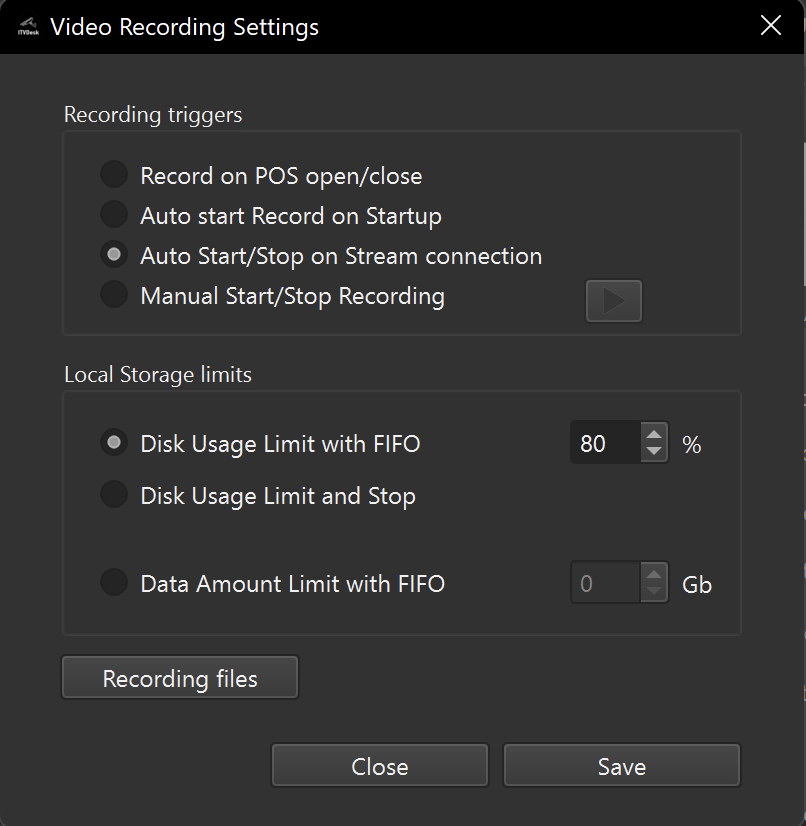
Recording Triggers
Recording can be started and stopped automatically or manually, depending on system configuration and external events.
POS Bill Open / Close Recording Control
ITVDesk supports POS-driven recording triggers via the POS Overlay API.
- Recording can start automatically on POS Bill Open
- Recording can stop automatically on POS Bill Close
- Each recording segment is directly associated with a specific
billId - Enables precise transaction-to-video correlation during playback
This mode is ideal for:
- Retail and hospitality environments
- Fraud investigation and audit trails
- Fast search and replay by transaction instead of time
Auto Start Record on Startup
- Recording begins automatically when ITVDesk starts
- Suitable for unattended or always-on systems
- No client connection required
Auto Start / Stop on Stream Connection
- Recording starts when the first client connects
- Recording stops when all clients disconnect
- Ideal for on-demand recording scenarios
- Reduces disk usage when streams are not viewed
Manual Start / Stop Recording
- Recording is controlled manually from the UI or via ONVIF
- Useful for testing or controlled environments
- ONVIF clients can trigger recording when Profile G is supported
Local Storage Limits
ITVDesk provides multiple ways to control disk usage.
Disk Usage Limit with FIFO
- Recording continues until disk usage reaches the defined limit
- Oldest recordings are automatically deleted (FIFO – First In, First Out)
- Recommended for continuous recording systems
Disk Usage Limit and Stop
- Recording stops when the disk usage limit is reached
- No automatic deletion
- Useful when data retention must be strictly preserved
Data Amount Limit with FIFO
- Limits total recording size (in GB)
- Old recordings are deleted when the limit is exceeded
- Predictable storage usage independent of disk size
Recording Files
The Recording Files section allows you to:
- Browse recorded clips
- Verify recording timelines
- Inspect storage usage
- Validate ONVIF playback compatibility
Recordings are indexed and exposed to ONVIF clients automatically.
ONVIF Profile G Support
ITVDesk fully supports ONVIF Profile G, enabling:
- Remote start / stop recording
- Playback by time range
- Forward, rewind, pause
- Recording search and export
- Multi-channel recording support
Any ONVIF Profile G–compatible client can control and retrieve recordings without proprietary extensions.
Playback and Control
Playback can be performed using:
- ONVIF Profile G clients
- NVR / VMS software
- Compatible ONVIF clients that support timeline navigation, search, and replay
Performance Notes
- Recording runs independently from live streaming
- Recording does not interrupt RTSP or ONVIF streams
- FIFO cleanup runs automatically in the background
- Disk I/O is optimized for long-term continuous recording
Summary
Recording Settings allow ITVDesk to function as a full ONVIF Profile G recording device.
You can:
- Control recording behavior automatically or manually
- Limit disk usage safely
- Enable remote ONVIF playback and control
- Use ITVDesk as a recorder, NVR bridge, or hybrid system
This makes ITVDesk suitable for professional surveillance, POS environments, enterprise monitoring, and compliant video retention systems.
Next Steps
👉 OSD Overlay on Video Stream