External RTSP / ONVIF IP Camera
Overview
External RTSP / ONVIF Camera allows ITVDesk to connect to an existing network camera, NVR, DVR, or media server and expose it as a virtual ONVIF IP camera.
This enables ITVDesk to:
- Re-stream external cameras via ONVIF and RTSP
- Transcode or pass through streams
- Combine external cameras with desktop, webcam, or audio sources
- Provide compatibility with VMS/NVR systems that require ONVIF devices
Supported input protocols include:
- RTSP / RTSPS
- ONVIF
- RTMP
- SRT
- HTTP MJPEG
All external streams can be converted to RTSP in real time.
Selecting External IP Camera Source
To add an external camera:
- Create a new Virtual ONVIF IP Camera
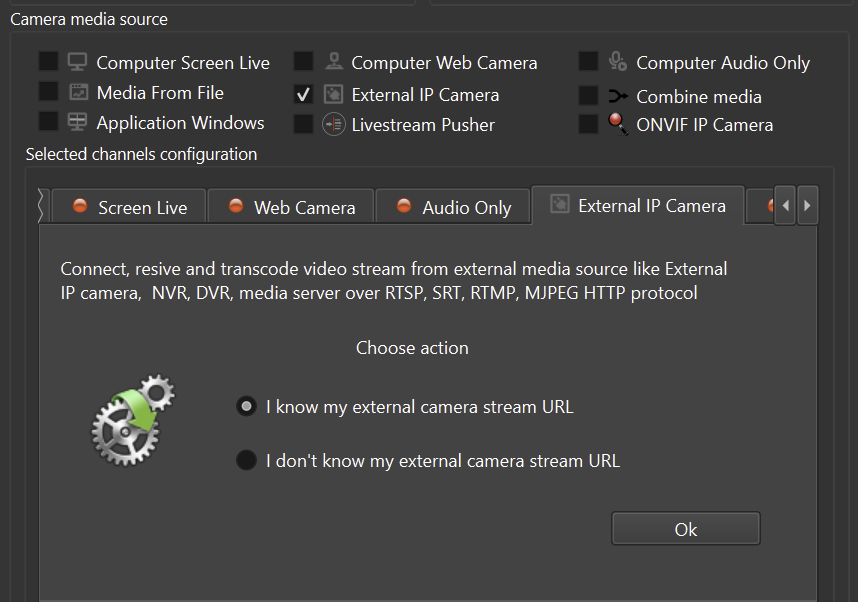
- In Camera Media Source, enable External IP Camera
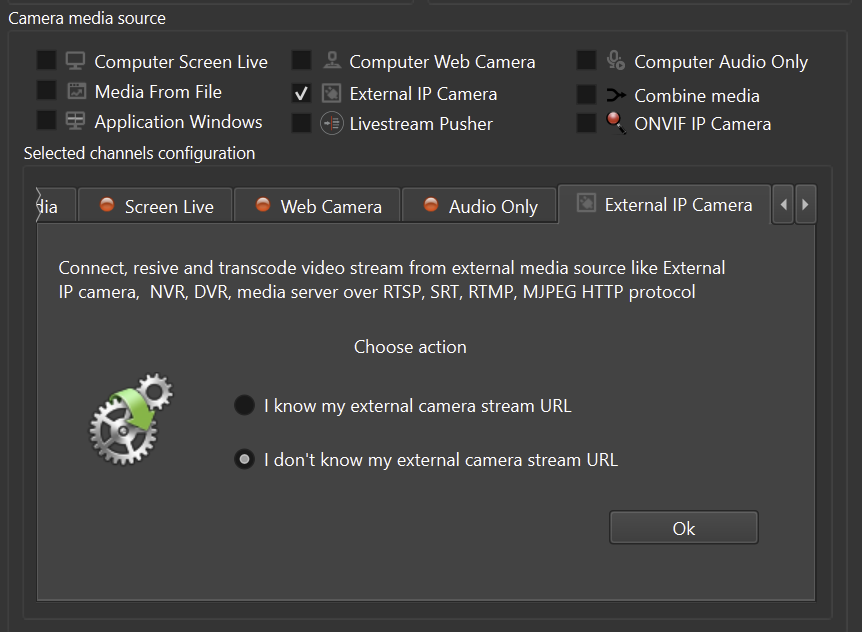
- Choose how the external stream will be added
- Configure the connection
- Confirm the configuration
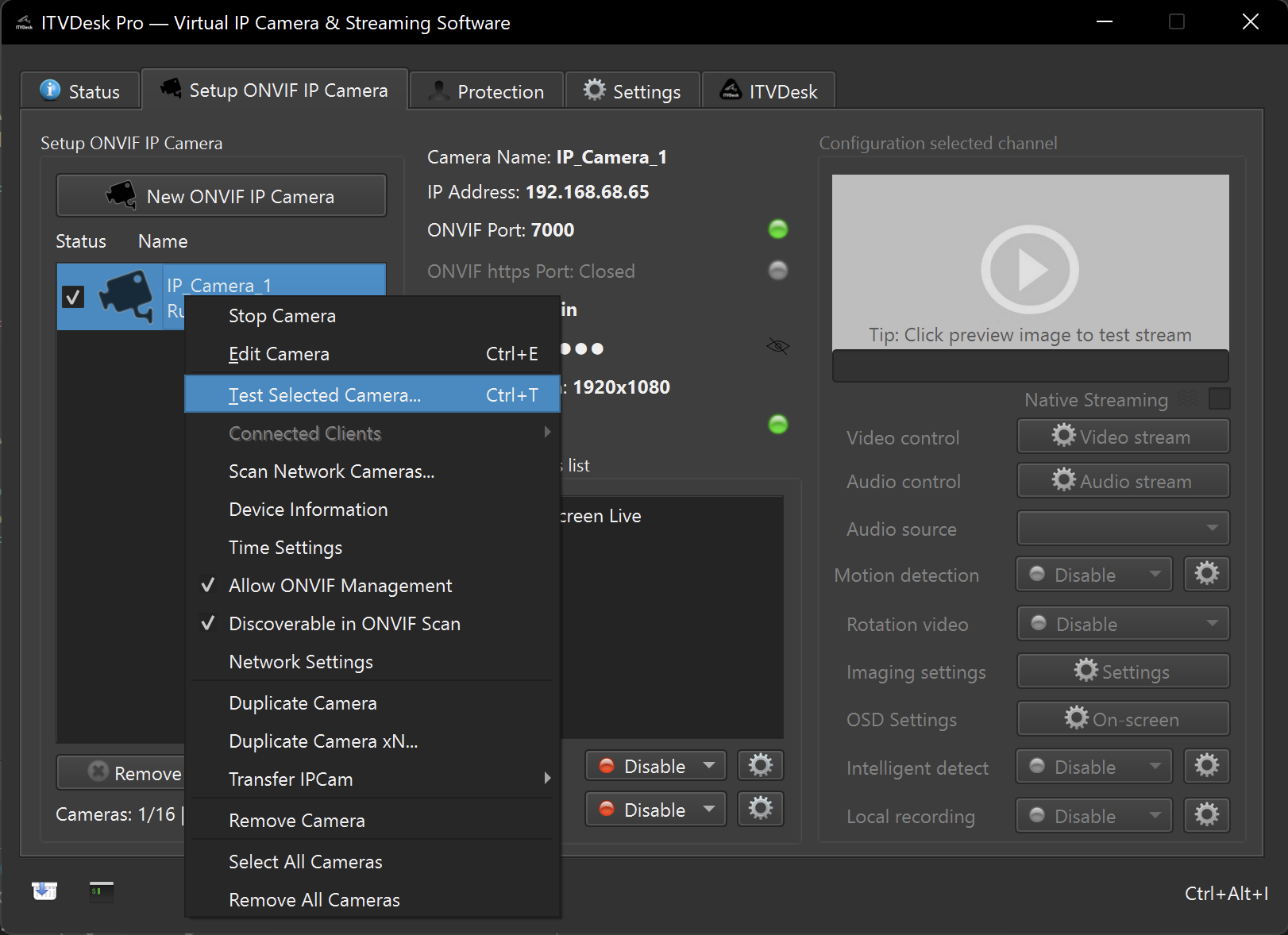
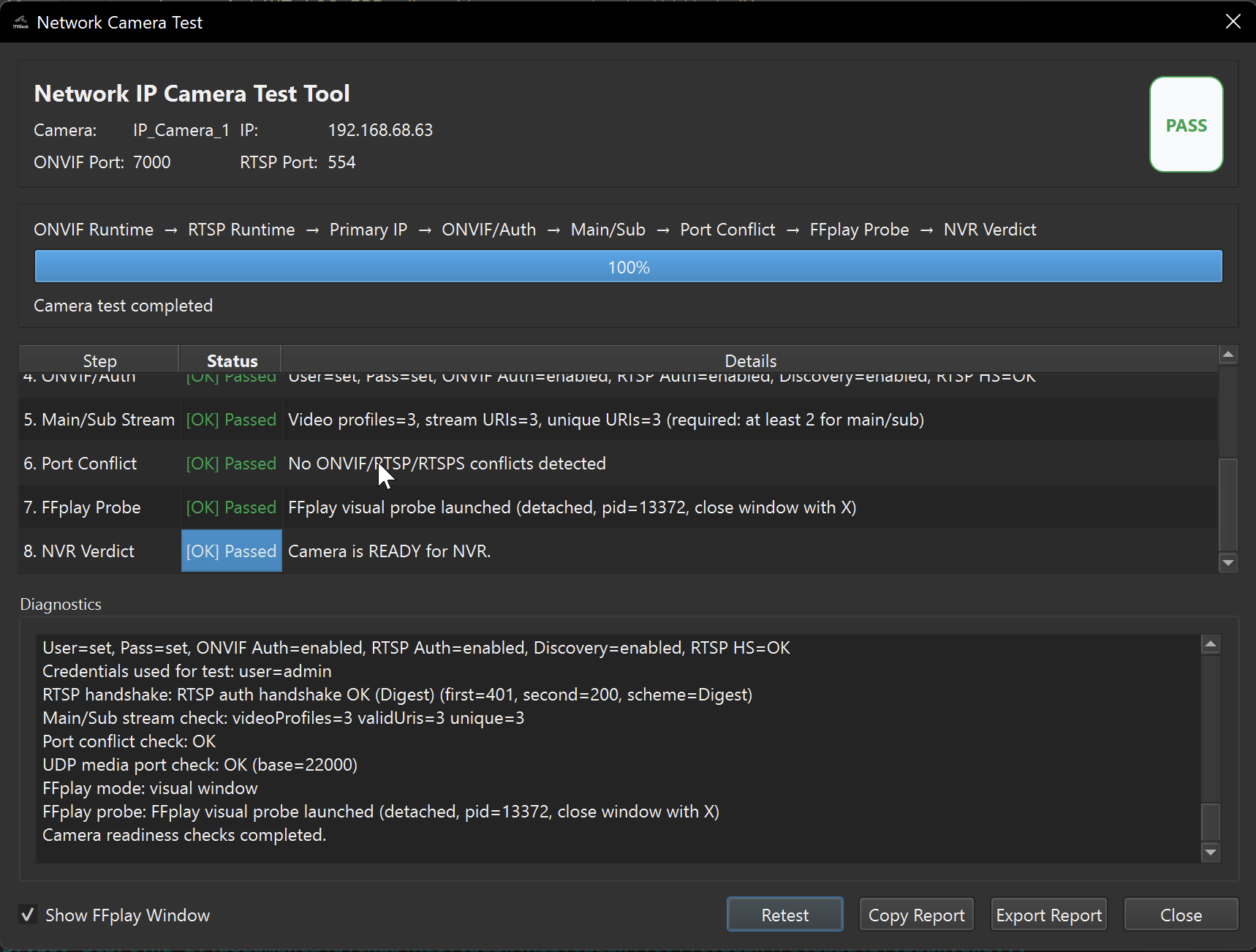
After adding (or changing) an external source, run Network Camera Test on the virtual camera to confirm ports, authentication and stream readiness.

Connection Methods
ITVDesk supports two ways of adding an external RTSP / ONVIF camera.
Method 1 – Automatic Stream Discovery (Camera Database)
This method is intended for users who do not know the exact RTSP URL.
ITVDesk includes a database of camera models and manufacturers that allows automatic stream discovery.
Steps
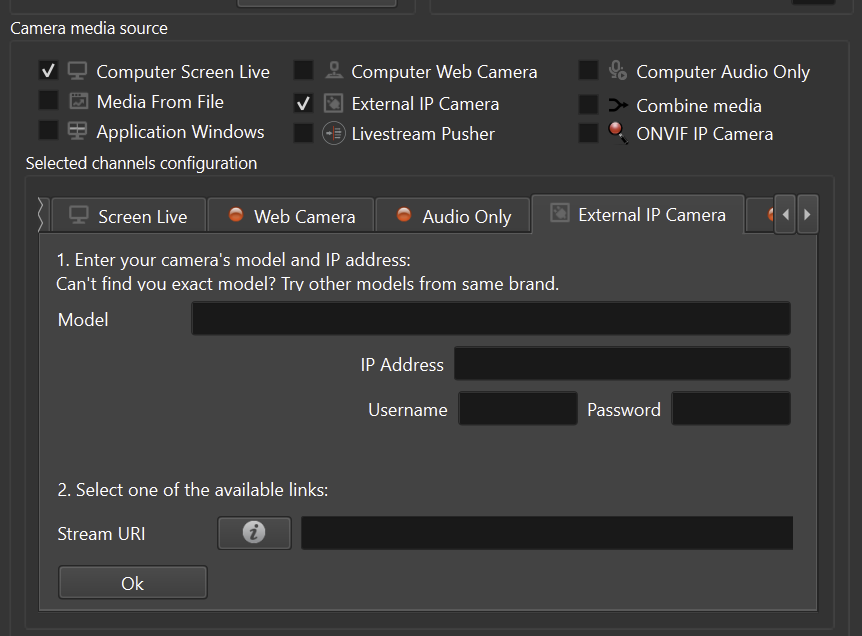
- Select I don't know my external camera stream URL
- Enter:
- Camera model
- Camera IP address
- Username and password
- ITVDesk retrieves available stream URLs
- Select one of the detected stream profiles
- Confirm the selection
Notes
- If your exact model is not listed, try another model from the same brand
- This method simplifies setup for non-technical users
- ONVIF discovery may also be used when supported by the camera
Method 2 – Manual RTSP / Stream URL
This method is intended for advanced users or custom setups.
Steps
- Select I know my external camera stream URL
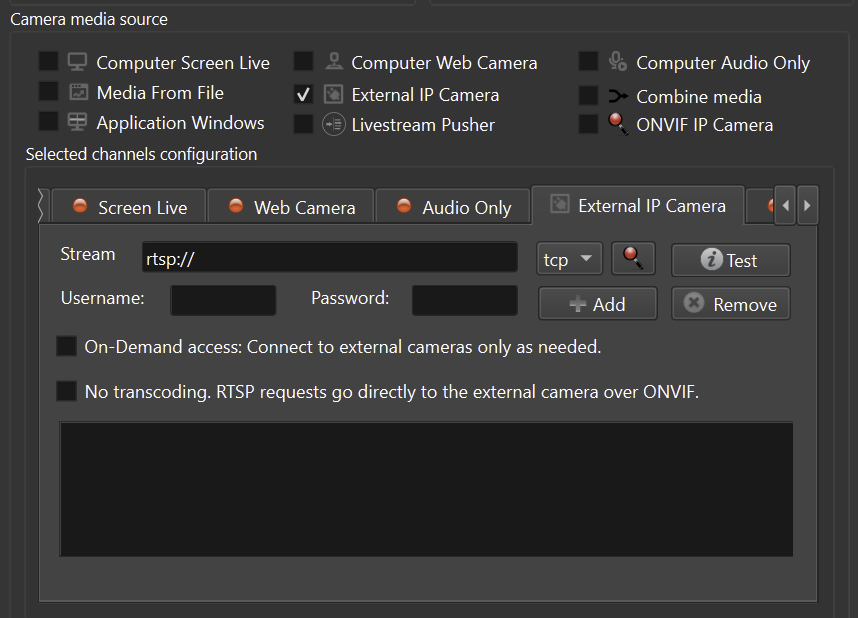
- Enter the full stream URL, for example:
rtsp://192.168.1.100:554/stream1
- Enter username and password if required
- Click Add
- Test the stream connection
If playback works locally but fails in your VMS/NVR, run Network Camera Test for a full readiness report.
This method supports:
- Custom RTSP paths
- Non-standard ports
- Streams from NVRs, DVRs, and media servers
- RTMP, SRT, and MJPEG inputs (converted to RTSP)
On-Demand Connection Mode
ITVDesk supports on-demand access for external cameras.
When enabled:
- ITVDesk connects to the external camera only when a client requests video
- No constant connection is maintained
- Network and CPU usage are reduced
Use on-demand mode for large deployments or bandwidth-constrained environments.
This is especially useful for:
- Large camera deployments
- Limited bandwidth environments
- External cameras with connection limits
Transcoding vs Direct Streaming
ITVDesk supports two processing modes for external streams:
Transcoding Enabled (Default)
- External stream is decoded and re-encoded
- Allows:
- Resolution change
- Bitrate control
- Codec conversion
- Audio mixing
- Recommended for compatibility and stream control
No Transcoding (Pass-Through)
- RTSP requests are forwarded directly to the external camera
- Lower CPU usage
- Original stream quality is preserved
- Requires compatible codecs on the client side
Video Pipeline (GPU / CPU)
When transcoding is enabled, ITVDesk must first decode the incoming external video stream before it can be processed, mixed, or re-encoded.
ITVDesk automatically selects the most efficient processing path available on the system.
GPU-Accelerated Processing (When Supported)
If the external stream codec and format are supported by the system's graphics hardware, ITVDesk will use GPU-based decoding and encoding.
This applies mainly to:
- H.264 / H.265 streams
- Media server and NVR streams
- RTSP, RTMP, and SRT sources with standard profiles
GPU acceleration reduces CPU load and is preferred when:
- Multiple external cameras are connected
- High-resolution streams are used
- The system supports hardware acceleration (e.g. modern GPUs)
The selection of GPU acceleration is automatic and does not require manual configuration.
CPU Multi-Threaded Processing (Fallback)
If GPU acceleration is not available or not supported for a given stream, ITVDesk automatically falls back to CPU-based processing.
CPU processing in ITVDesk is:
- Fully multi-threaded
- Optimized for multi-core processors
- Stable across all supported platforms
This ensures that:
- All supported stream formats can be processed
- No functionality is lost on systems without GPU acceleration
- Performance scales with available CPU cores
CPU fallback is commonly used for:
- MJPEG streams
- Non-standard RTSP profiles
- Mixed or unusual external stream formats
Transparent Operation
From the user’s perspective:
- No manual selection between GPU and CPU processing is required
- ITVDesk automatically chooses the optimal processing path
- Stream behavior and configuration remain the same
This design guarantees:
- Maximum compatibility
- Predictable performance
- Reliable operation in both desktop and server environments
Integration with ITVDesk Features
External cameras can be:
- Exposed as ONVIF devices
- Combined with desktop or webcam streams
- Included in Combined Media layouts
- Recorded locally
- Controlled through VMS/NVR systems
This allows ITVDesk to act as a media gateway, not just a screen capture tool.
Summary
External RTSP / ONVIF Camera support allows ITVDesk to:
- Integrate existing cameras and NVR streams
- Convert RTMP, SRT, and MJPEG streams to RTSP
- Provide ONVIF compatibility for non-ONVIF sources
- Reduce system load using on-demand connections
- Combine external and local media sources seamlessly
Next Steps
👉 Audio Only Stream