Application Window Capture
Overview
Application Window Capture allows ITVDesk to capture and stream a single application window instead of the entire desktop.
Only the selected application window is captured and exposed as a video stream, while the rest of the desktop remains hidden.
This mode is ideal when you want to monitor or record specific software without exposing the full screen.
Typical use cases include:
- POS applications
- Banking or financial software
- ERP / CRM systems
- Industrial control panels
- Training and presentation software
- Any application containing sensitive data
Selecting Application Window Capture
To capture a specific application window:
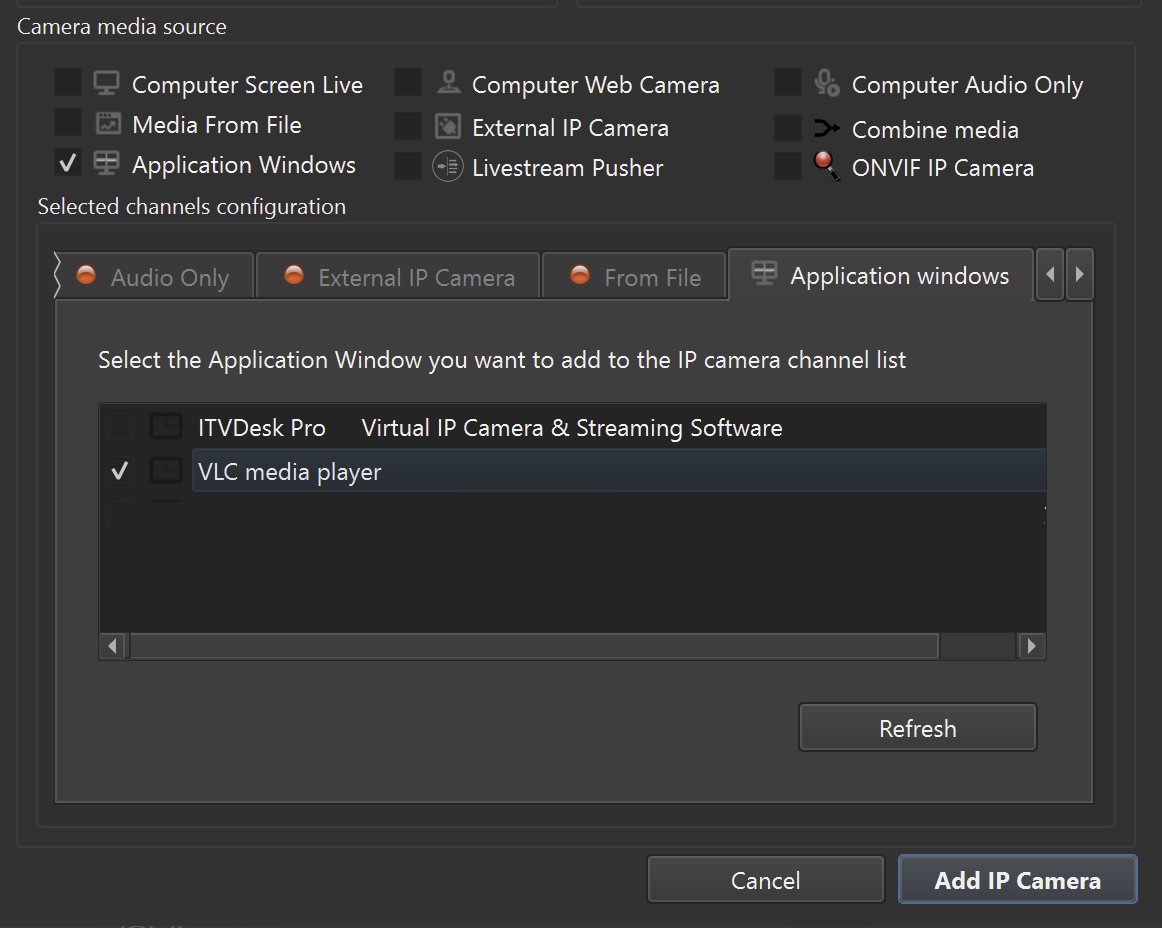
- Create a new Virtual ONVIF IP Camera
- In Camera Media Source, select Application Windows
- Choose the application window from the list
- Confirm the selection
Only the selected window will be captured and streamed.
How Application Window Capture Works
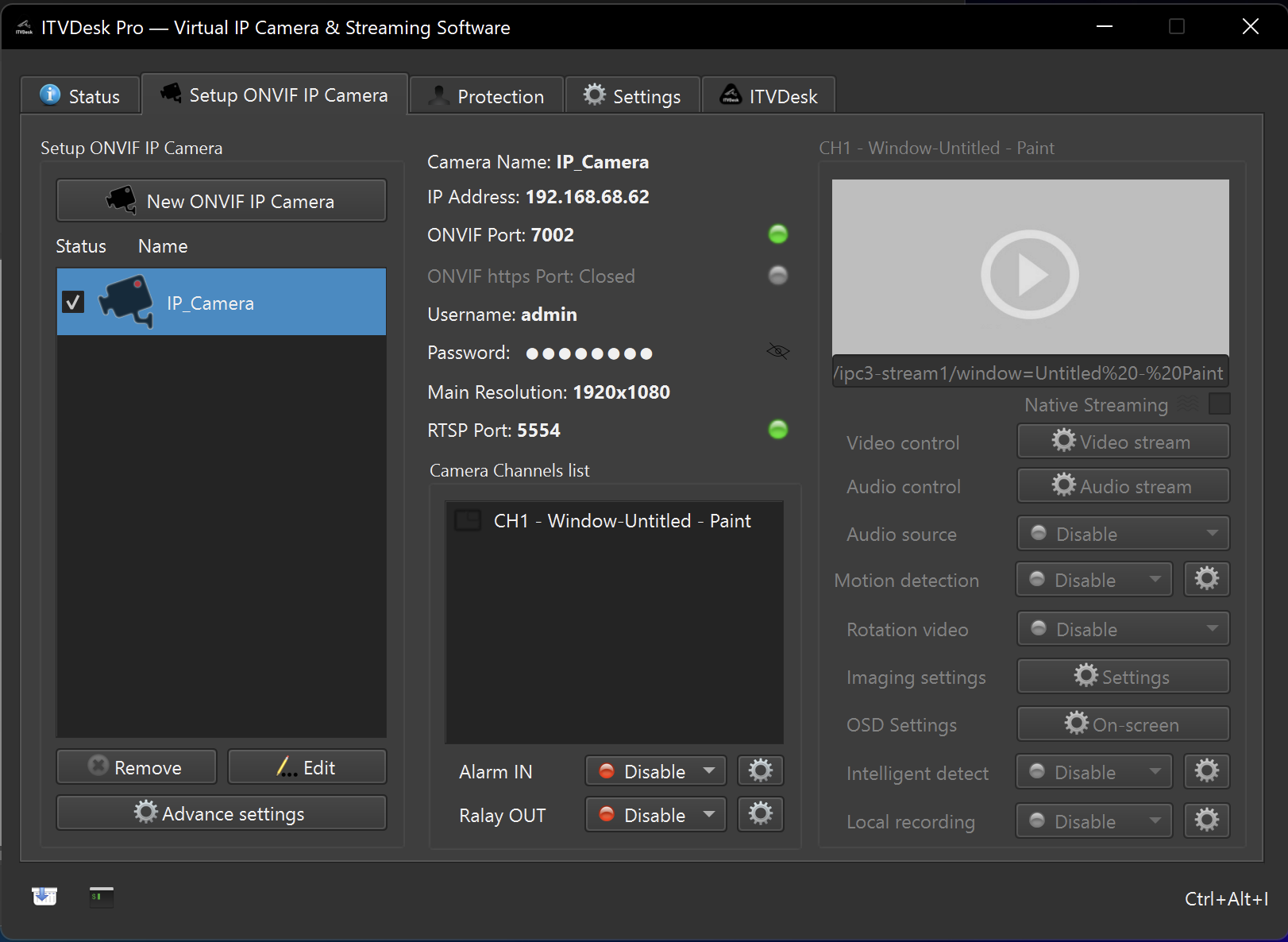
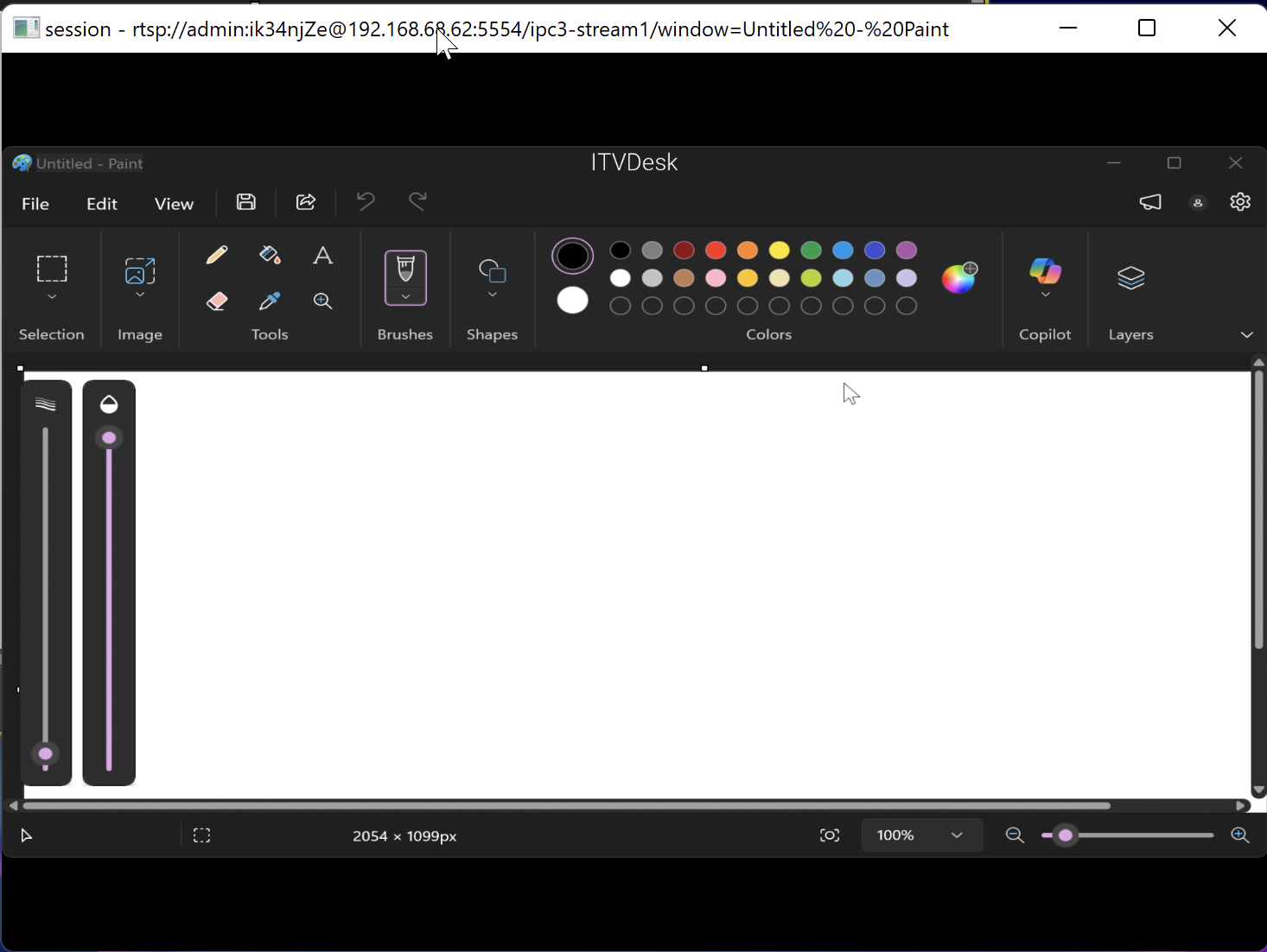
- ITVDesk captures only the client area of the selected application window
- Capture is independent of desktop resolution and layout
- Other applications, notifications, taskbars, or background windows are never included
- If the application window is moved, resized, or partially occluded, the stream updates automatically
This ensures:
- Improved privacy and data isolation
- Clean and predictable video output
- Reduced capture overhead and unnecessary data exposure
Window Visibility and Behavior
Application Window Capture behaves as follows:
- If the application window is visible, it is streamed normally
- If the window is minimized, the stream may pause or freeze (depending on OS)
- If the window is closed, the stream stops
- If the application is restarted, it must be reselected if the window handle changes
For continuous operation, ensure the application window remains open and visible.
Multi-Channel and Multi-Camera Support
Application windows can be used in both ITVDesk operating modes:
Multi-Channel Mode
- Each captured application window becomes one ONVIF video channel
- All windows belong to a single ONVIF IP camera
- Suitable for VMS/NVR systems that support multi-channel devices
Multiple Camera Mode
- Each application window becomes a separate virtual ONVIF IP camera
- Each camera has one video channel
- Each camera uses the same IP address but a different port
This provides full compatibility with both modern and legacy VMS systems.
Performance Considerations
Application Window Capture is optimized for a GPU-accelerated media pipeline (decode, processing, and encode), with automatic CPU fallback when needed.
- Each window is processed independently
- Encoding is hardware-accelerated on supported GPUs
- Resource usage depends on:
- Window resolution
- Frame rate
- Selected codec
- Number of active application windows
GPU Usage
For application window capture:
- GPU acceleration is used across the full pipeline when supported
- Hardware encoding significantly improves throughput in multi-window scenarios
If GPU acceleration is unavailable, ITVDesk falls back automatically to optimized CPU processing.
Advantages Over Desktop Capture
Application Window Capture offers several advantages:
- No exposure of unrelated desktop content
- Higher privacy and security
- Cleaner video streams
- Reduced bandwidth usage
- Easier compliance in regulated environments
This makes it especially suitable for POS, banking, and enterprise systems.
Summary
Application Window Capture allows ITVDesk to:
- Capture only a selected application
- Stream it via ONVIF and RTSP
- Expose it as multi-channel or multi-camera output
- Maintain privacy and security
It is the preferred capture method when monitoring specific software applications instead of full desktops.
Next Steps
👉 Webcam Capture
👉 Combined Media Stream
👉 External RTSP / ONVIF Camera