Desktop Capture
Overview
Desktop Capture allows ITVDesk to stream one or more computer monitors (desktops) as video channels of a virtual ONVIF IP camera.
This is commonly used for:
- Control rooms
- Operator workstations
- Remote monitoring
- Screen recording and auditing
- Training and demonstration systems
ITVDesk supports single-monitor and multi-monitor desktop capture and can expose them as multiple ONVIF video channels or as separate virtual IP cameras, depending on your system and NVR/VMS capabilities.
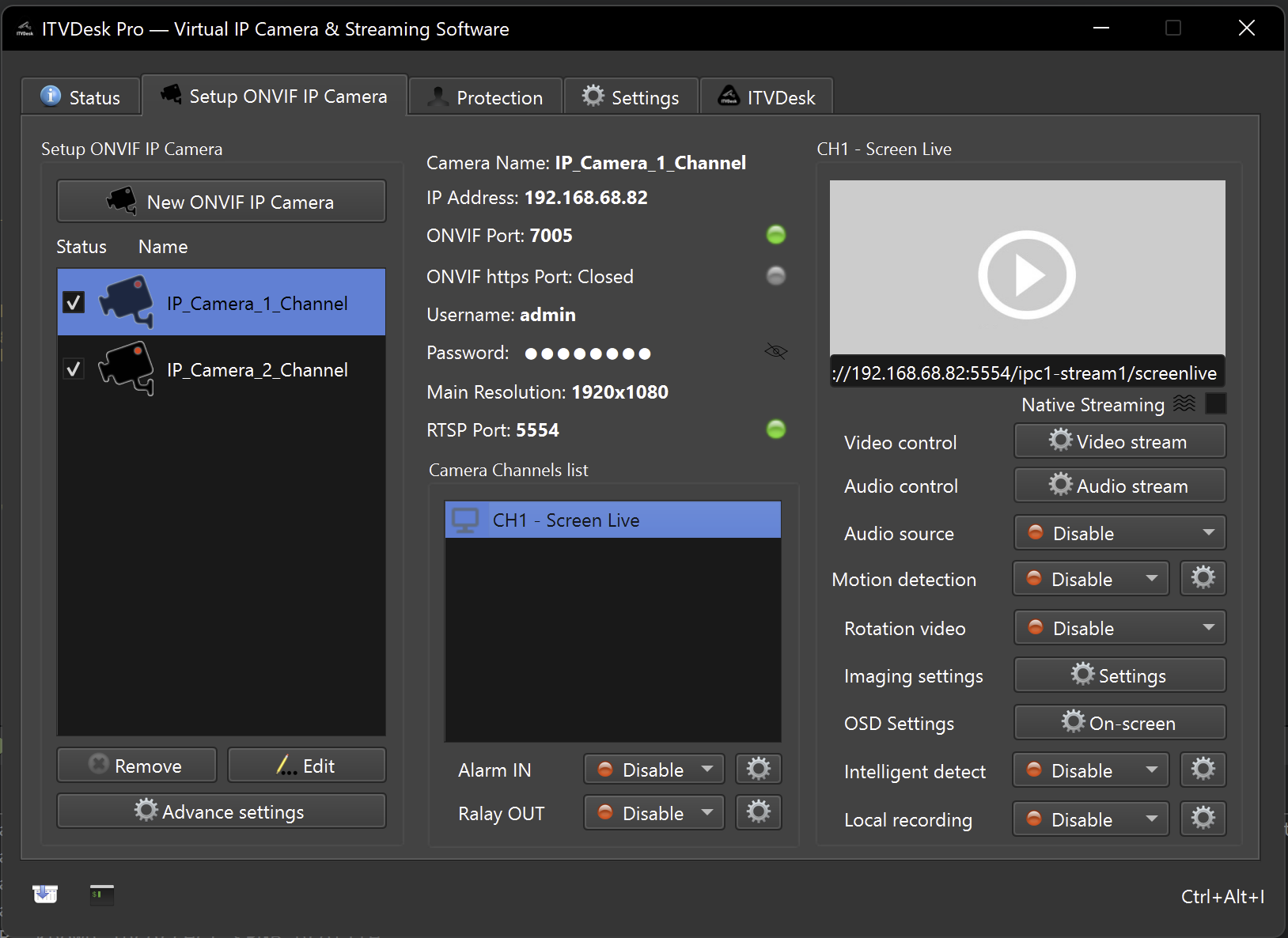
Selecting Desktop Capture
To enable desktop capture:
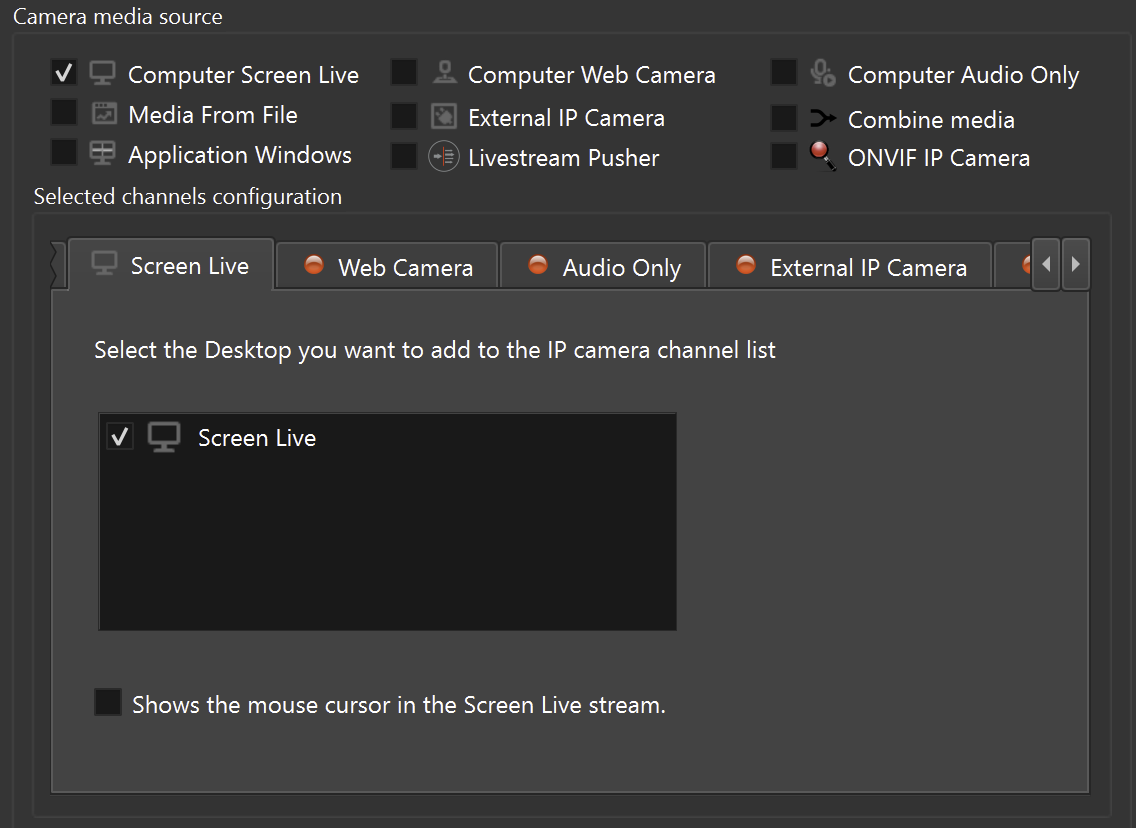
- Create a new Virtual ONVIF IP Camera
- In Camera Media Source, enable Computer Screen Live
- Select one or more available monitors
- Confirm the selection
Each selected monitor becomes a video input source.
Multiple Monitors and Channel Creation
When multiple monitors are selected, ITVDesk can handle them in two different ways, depending on the capabilities of your NVR/VMS or RTSP/ONVIF client and the desired video channel structure.
Terminology:
- NVR (Network Video Recorder) – A device or software that records video streams from IP cameras.
- VMS (Video Management System) – Software used to manage, view, record, and search video from IP cameras and ONVIF devices.
- RTSP player – Any application capable of playing RTSP streams (for example VLC, FFplay, or similar tools).
If you do not use a third-party VMS or NVR, test the stream with ONVIF Device Manager, VLC/ffplay, or another compatible ONVIF / RTSP client before deploying it in production.
Mode 1 – Multiple Channels (Single ONVIF Device)
In Multi-Channel mode, ITVDesk exposes one ONVIF IP camera with multiple video channels.
- Each monitor = one ONVIF video channel
- All channels belong to the same ONVIF device
- Ideal for NVR/VMS systems that support ONVIF multi-channel devices (e.g. ONVIF Profile S / multi-profile devices)
Example
If the system has:
- 2 monitors
- 3 webcams
ITVDesk appears as:
- 1 ONVIF IP camera
- 5 video channels
- Channel 1–2: monitors
- Channel 3–5: webcams
This creates a single logical device with multiple video outputs.
When to Use Multi-Channel Mode
- Your NVR/VMS supports ONVIF devices with multiple channels
- You want all video sources grouped under one device
- Easier device management and cleaner device list
Mode 2 – Multiple Cameras (Single Channel per Camera)
In Multiple Camera mode, ITVDesk creates one virtual ONVIF IP camera per video source.
- Each monitor = one ONVIF device
- Each device has exactly one video channel
- All devices use the same IP address
- Each device uses a different ONVIF port
This mode is designed for compatibility with NVR/VMS systems that do not support multi-channel ONVIF devices.
Example
If the system has:
- 2 monitors
- 1 webcam
ITVDesk appears as:
- 3 ONVIF IP cameras
- Camera 1 → Monitor 1 (port 7000)
- Camera 2 → Monitor 2 (port 7001)
- Camera 3 → Webcam (port 7002)
Each camera has exactly one video channel.
When to Use Multiple Camera Mode
- Your NVR/VMS supports only single-channel ONVIF cameras
- The system cannot handle ONVIF multi-profile or multi-channel devices
- You want maximum compatibility
Key Difference: Channels vs Cameras
| Feature | Multi-Channel | Multiple Cameras |
|---|---|---|
| ONVIF devices | 1 | Multiple |
| Channels per device | Multiple | 1 |
| IP address | 1 | 1 |
| Ports used | 1 | Multiple |
| NVR compatibility | Requires multi-channel support | Works everywhere |
Performance Considerations
ITVDesk is optimized for a GPU-accelerated media pipeline (decode, processing, and encode), with automatic CPU fallback when GPU acceleration is not available.
- Each captured monitor or video source is processed independently
- Video encoding is hardware-accelerated on supported GPUs
- Resource usage depends on:
- Output resolution
- Frame rate (FPS)
- Number of active monitors or sources
- Selected video codec (H.264 / H.265 / MJPEG)
GPU Usage
For desktop and application capture, ITVDesk now uses GPU acceleration across the full video pipeline where supported, including real-time encoding.
When GPU acceleration is unavailable for a specific codec or platform, ITVDesk automatically falls back to optimized multi-threaded CPU processing.
This design ensures:
- Stable performance on servers and workstations
- Predictable resource usage
- Reliable operation in multi-monitor and multi-channel environments
Recommendation
For multi-monitor setups:
- A modern GPU and recent drivers provide the highest throughput
- A multi-core CPU remains important for system-level orchestration
- Hardware acceleration is recommended for best real-time performance
Summary
Desktop Capture in ITVDesk allows:
- Capturing one or multiple monitors
- Exposing them as multiple ONVIF channels or multiple ONVIF cameras
- Seamless integration with both modern and legacy NVR/VMS systems
ITVDesk is one of the first applications that allows mixing multiple channels and multiple virtual IP cameras within the same system, providing maximum flexibility for real-world deployments.
Next Steps
👉 Application Window Capture
👉 Webcam
👉 Combined Media Stream