Webcam Capture
Overview
Webcam Capture allows ITVDesk to stream video from one or more local web cameras as part of a virtual ONVIF IP camera.
This enables standard USB webcams, integrated laptop cameras, or professional camera devices to be exposed to:
- VMS systems
- NVRs
- RTSP / RTSPS players
- ONVIF-compatible clients
Webcam capture is commonly used for:
- Face and operator monitoring
- POS and cashier surveillance
- Training and supervision
- Combined streams (webcam + desktop)
- Remote assistance and control rooms
Selecting Webcam Capture
To add a webcam as a video source:
- Create a new Virtual ONVIF IP Camera
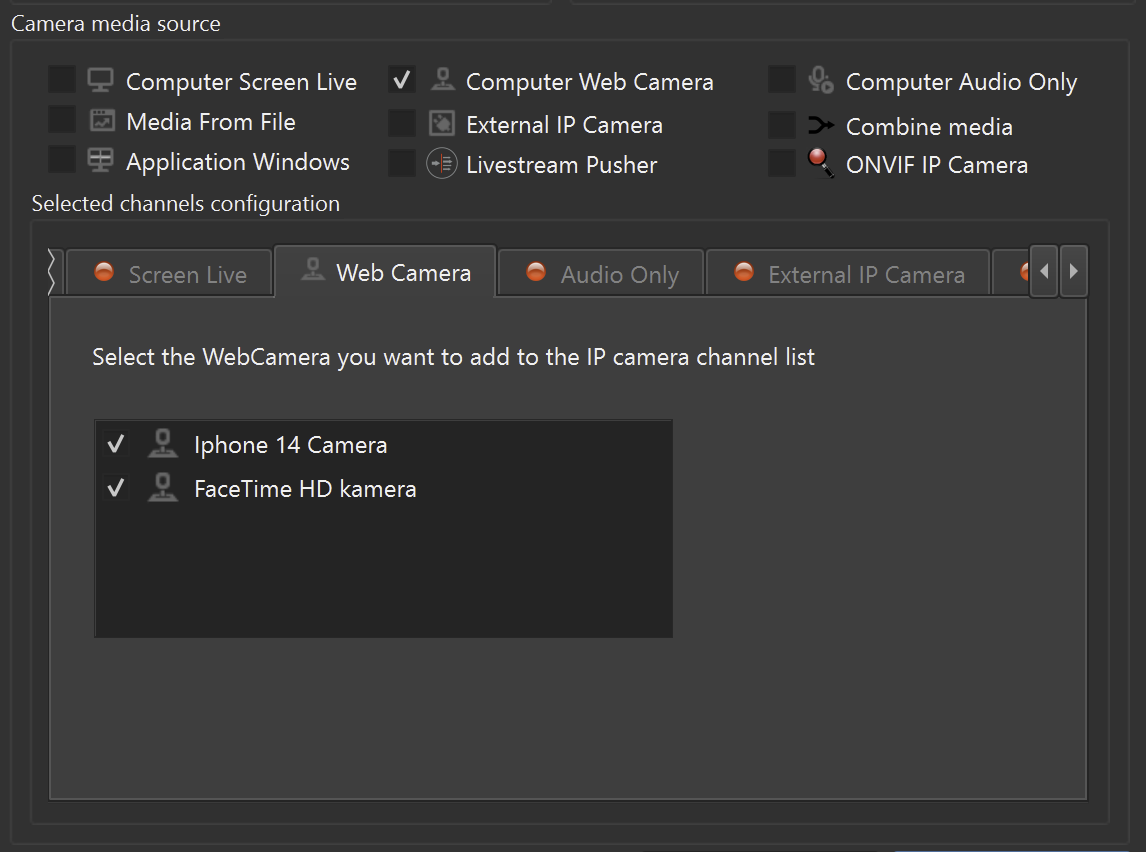
- In Camera Media Source, select Computer Web Camera
- Choose the desired webcam device from the list
- Confirm the selection
Each selected webcam becomes an independent video input.
ITVDesk uses a centralized audio muxer. Audio is configured in the main camera settings and can be mixed into any media source.
Multiple Webcams and Channel Creation
ITVDesk supports multiple webcams simultaneously.
Depending on your configuration and NVR/VMS capabilities, webcams can be exposed in two ways:
Multi-Channel Mode (Single ONVIF Device)
- Each webcam becomes one video channel
- All webcams belong to one ONVIF IP camera
- Recommended for modern VMS/NVR systems that support multi-channel ONVIF devices
Example
If the system has:
- 3 webcams
ITVDesk appears as:
- 1 ONVIF IP camera
- 3 video channels (one per webcam)
Multiple Camera Mode (Single Channel per Camera)
- Each webcam becomes a separate virtual ONVIF IP camera
- Each camera has one video channel
- All cameras share the same IP address
- Each camera uses a different ONVIF port
This mode is intended for maximum compatibility with legacy or simple VMS systems.
Audio Support
If the selected webcam provides an audio input:
- Audio can be enabled or disabled
- Audio is streamed together with the video channel
- Two-way audio is supported when enabled and supported by the ONVIF client
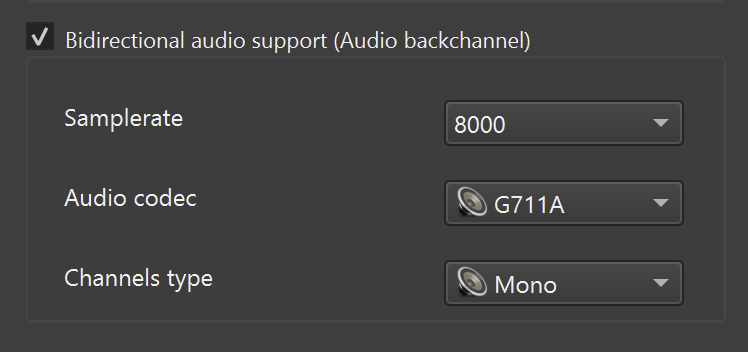
Audio settings are configured after the camera is added, in the main camera (front) settings.
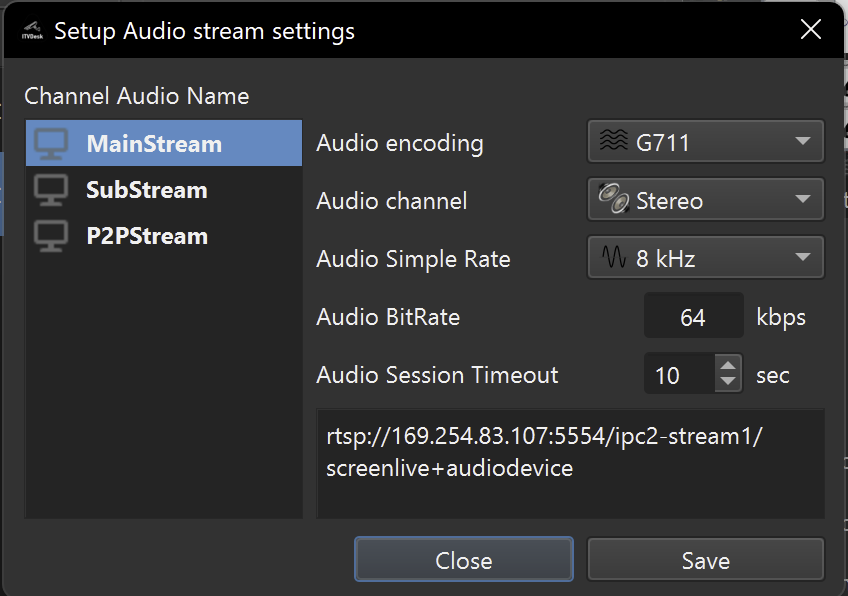
Stream Settings for Webcam Capture
The webcam selection dialog is used only to select the device.
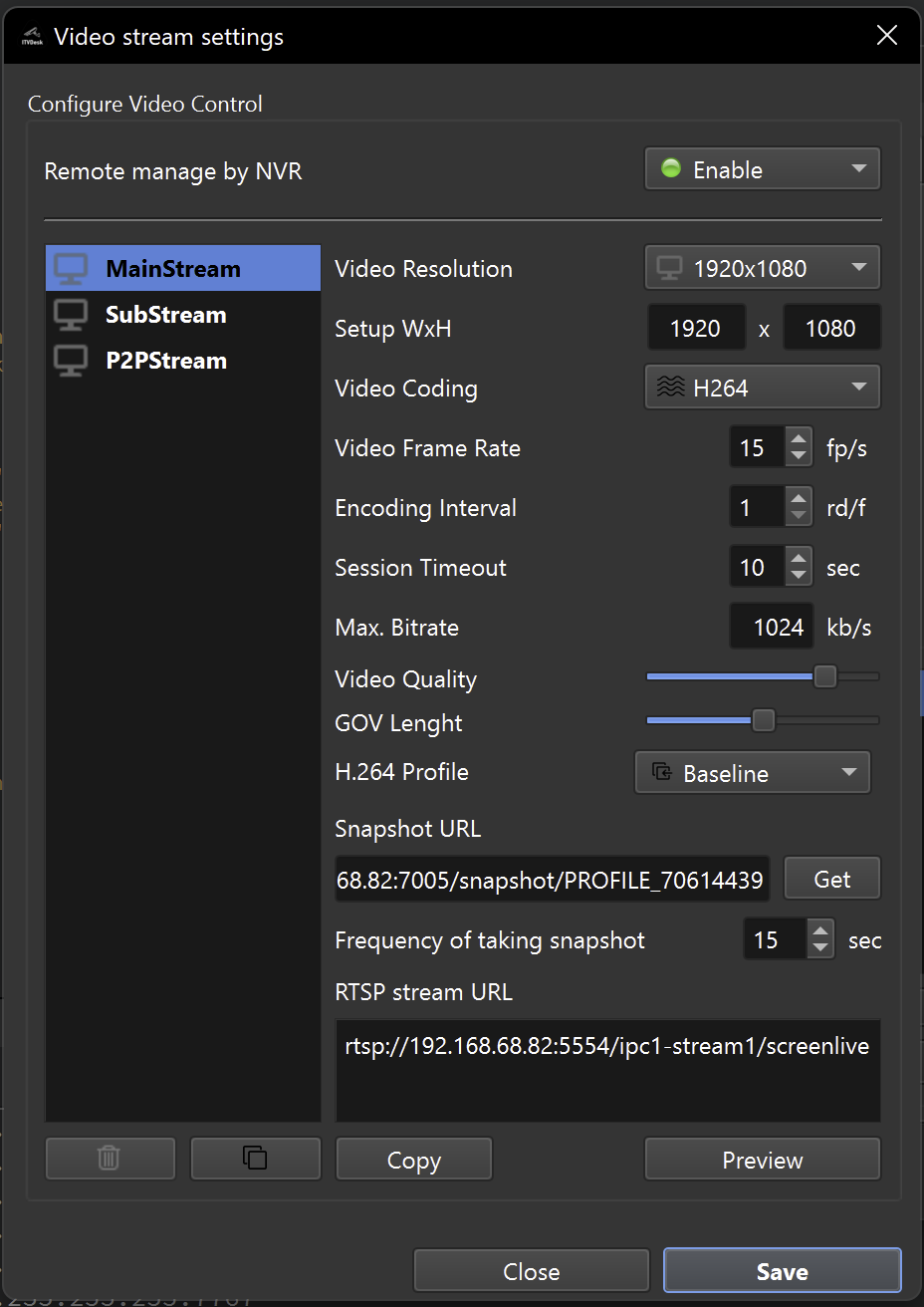
All video and audio stream parameters are configured after the camera is created, using the main camera (front) configuration.
Typical stream settings include:
- Enable / disable stream
- Output resolution
- Frame rate (FPS)
- Video codec (H.264 / H.265 / MJPEG)
- Audio enable / disable
- Recording enable / disable
All settings can be adjusted in real time, without restarting ITVDesk.
Common Use Cases
Webcam Capture is frequently used for:
- Face recording alongside desktop capture
- POS operator monitoring
- Training and exam supervision
- Combined streams (webcam + screen)
- Security monitoring in offices and control rooms
Summary
Webcam Capture allows ITVDesk to:
- Stream one or multiple local webcams
- Expose them via ONVIF and RTSP
- Use multi-channel or multi-camera layouts
- Combine webcams with other media sources
This makes ITVDesk suitable for both simple webcam monitoring and advanced multi-source surveillance setups.
Next Steps
👉 Combined Media Stream
👉 External RTSP / ONVIF Camera
👉 Recording Configuration